Browser Requirements

  • Recommended Browsers: Use a current version of Chrome, Microsoft Edge, Firefox, or Safari.
  • JavaScript enabled: In 99% cases the JavaScript is enabled by default. You will get a warning if it is not enabled.
  • Popup Windows enabled: Your browser must allow popup windows for how2pass.com. Please use this page to verify the popup blocker and other requirements. Click here for instructions to allow popup windows.
  • Screen Size: The test interface initially uses the screen size of 800x600 or 1024x768. You can resize it later as desired.

Test Interface

  • The first page shown is the index page showing topic-wise tests grouped as Study Mode/Practice Mode and a Random Test under the Test Mode.
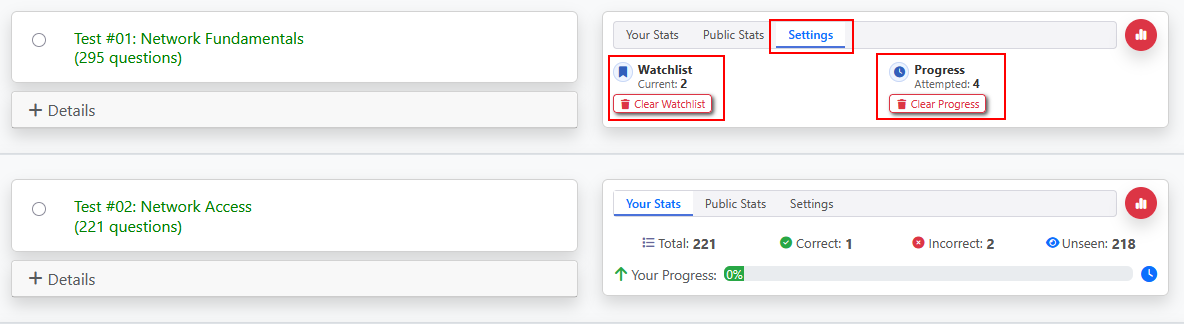
  • A detailed Your Stats section shows your progress statistics, including your score history. You can see your score history by clicking on the watch icon at the end of progress bar of every test.
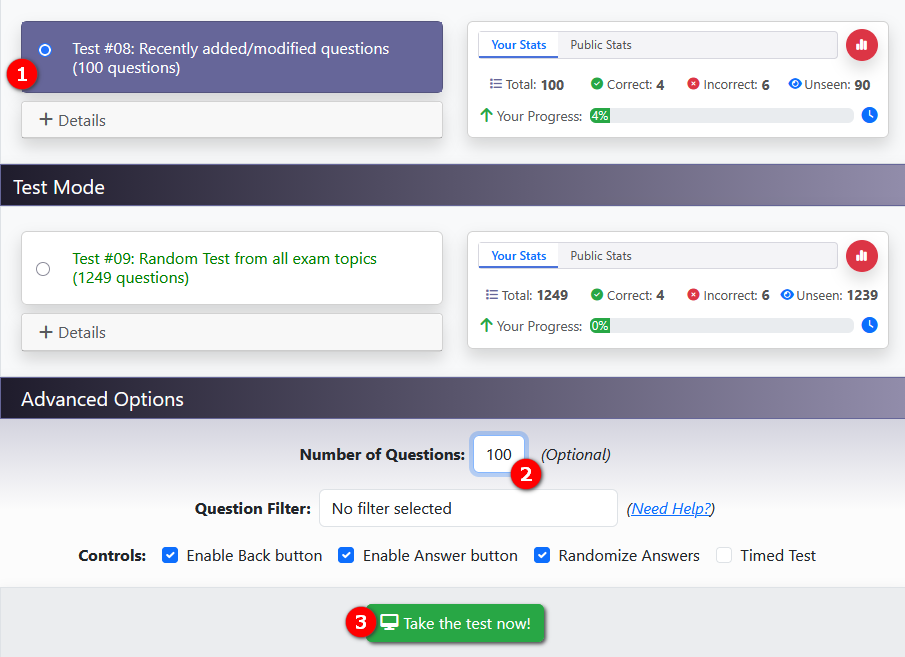
  • It takes three clicks to start a test without any advanced options:
    1. select a test by clicking on the radio button (dot) in first column,
    2. select number of questions, and
    3. hit Take the test now! button.
  • Three clicks to start a test
  • Hitting Take the test now button will open a new popup window with three panels. The top panel shows a help button that opens this page, time remaining, and the question counter.
  • The Middle panel shows questions and exhibits. The Exhibit button if available opens the exhibit. The cross button on the exhibit window hides the exhibit.
  • The bottom panel shows controls like <<Back, Next>>, Answer, Add to Watchlist, Comments, and Quit Test buttons.
  • In Study Mode, you can use the Answer button to show correct answer and explanation for a question. Use the Hide Ans button to hide answer. This feature is not available for Test Mode (Random Test).
  • The Quit Test button will end the test evaluating your responses up to the current question.
  • Back button and the Answer button are disabled in the Random Test.
  • When you complete a test the results page shows your score report, section analysis, each question with your answer, correct answer and explanation, and a button titled Repeat this test with (x) incorrectly answered questions. Clicking this button will start a new test with only questions that you answered incorrectly.

Advanced Options

  • Controls: The controls include options like enable back button, enable answer button, and timed test. The timed test will automatically end the test when your time expires, scoring only questions that you have attempted.
  • Question Search: You can access any question if you know its question id (QID). QID is the string indicated in red color in (QID:NA255). Enter QID in the search field and hit Take the test now button. Please note that in order to take any other test after you have clicked on the Question Search field, you have to select that test again.
  • Question Filter: This option lets you practice questions according to your own pace and need. It remembers the questions you have attempted, whether answered correct or incorrect, separately for each topic-wise test. This data is stored on our server, so that you can use this filter from any location. For example, you can take a test on your office computer and see the questions you got wrong from your home computer also. It offers the following filtering options:
    • Answered Correct: Shows questions which you have answered correct in previous attempt(s).
    • Answered Incorrect: Shows questions which you have answered Incorrect in previous attempt(s).
    • Unseen: Shows questions which you have not yet seen.
    • Questions in the Watchlist: Shows questions you have saved to your Watchlist.
    • Clear progress history: Erases your record of which questions you answered correct or incorrect.

Watchlist and Comments

  • Watchlist: Use Add to Watchlist during a test to save important questions for later review. You can later use the Watchlist filter to practice only those saved questions.
  • Comments: Signed-in users can open the Comments popup for the current question to read or add comments, reply to main comments, upvote helpful comments, or report unsuitable comments.

How 2 enable Popup Windows in
Edge / Firefox / Safari / Chrome

All modern browsers have popup blocker enabled by default. The test opens in a new popup window, so please allow popups for how2pass.com. You can also use this compatibility page to test popup and browser settings.
Microsoft Edge

  1. Enter edge://settings/content/popups in the URL/address bar and press Enter.
  2. Click the Add button next to Allow.
  3. Type [*.]how2pass.com and click Add.

Mozilla Firefox

  1. Open Settings > Privacy & Security.
  2. Under Permissions, find Block pop-up windows and click Exceptions.
  3. Type how2pass.com, click Allow, and then click Save Changes.

Safari

  1. Open Safari and go to how2pass.com.
  2. Open Safari > Settings for This Website.
  3. Set Pop-up Windows to Allow.

Google Chrome

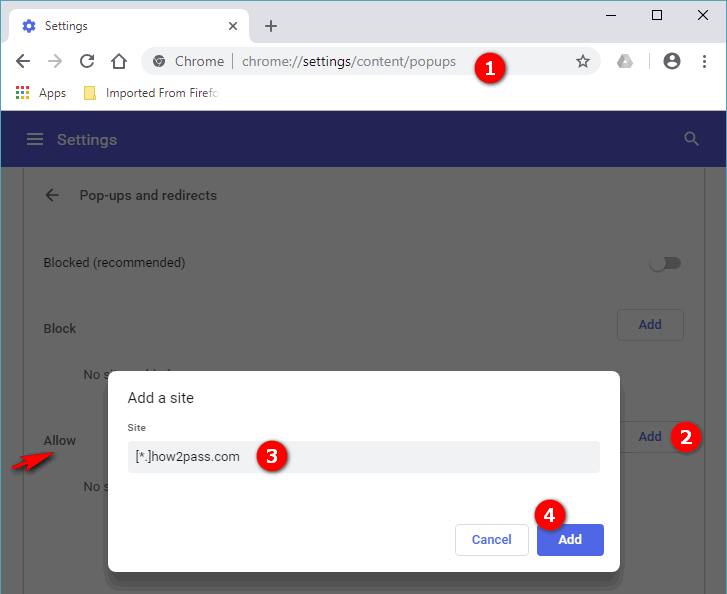
  1. Enter chrome://settings/content/popups in the URL/address bar and press Enter.
  2. Click the Add button next to Allowed to send pop-ups and use redirects.
  3. Type [*.]how2pass.com and click Add.
Create exeption for our website in Chrome popup blocker